How to Check Fortnite Playtime: A Practical Guide
Learn to verify Fortnite playtime across PC, consoles, and mobile. This step-by-step guide covers Epic Games activity data, platform dashboards, and cross-platform tracking to help you monitor hours accurately and improve your in-game practice.


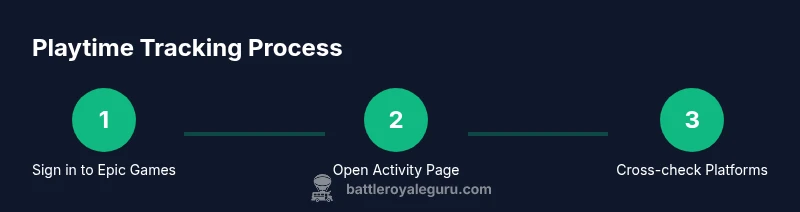
You can check Fortnite playtime by reviewing your Epic Games account activity and each platform’s playtime dashboards. Start by signing in to your Epic Games account on a browser, then navigate to Account or Activity to view recent hours. For console or mobile, use the system profiles or Fortnite app to confirm hours and cross-check with Epic’s data for accuracy.
What counts as playtime in Fortnite?
Playtime in Fortnite is the total time you spend actively in matches, the lobby, and related menus across all supported platforms. It can be tricky because hours may appear differently on PC, PlayStation, Xbox, Nintendo, and mobile, and because some dashboards only show recent sessions rather than lifetime totals. According to Battle Royale Guru, understanding what counts helps you track progress and set healthy gaming habits. The Battle Royale Guru team found that most players naturally over- or under-report their playtime when they rely on a single device. For a precise view, use a cross-platform approach that combines Epic Games activity with your platform dashboards. This gives you a fuller sense of how much you’ve spent practicing, grinding, or testing new strategies. In practice, you’ll see playtime reflected in your account’s activity log, in the launcher’s recent activity, and in the console's game profile. Each source covers different time ranges, so you’ll usually need to pull data from multiple places to get a clear picture. Remember that playtime is a proxy for engagement, not a measure of skill; aim to balance practice with rest and breaks. Collecting hours across devices helps you identify patterns, such as longer blocks of practice on weekends or shorter sessions before a tournament. Staying consistent with tracking makes improvement more measurable and transparent.
PC tracking: Epic Games account activity and launcher data
On PC, your central source is the Epic Games account. Sign in on a web browser and navigate to the Activity or Account page to review recent Fortnite sessions and approximate hours. Data may be organized by date and platform, allowing you to filter for Fortnite sessions. If you also use the Epic Games Launcher, open it and check a potential “recent activity” panel that lists hours spent in various games, including Fortnite. The Battle Royale Guru team notes that the PC view tends to be more detailed for long-term tracking, but you should corroborate with in-game stats or console data for a complete snapshot. When you play on multiple devices, tally hours from each source to avoid double-counting the same session. A simple log or spreadsheet can help—record date, platform, and hours from each source and reconcile totals weekly. This cross-check is especially useful for tournaments or coaching sessions where precise time matters. Pro tip: set a recurring reminder to update your log after last-online sessions to keep data current.
Console playtime: PlayStation, Xbox, and Nintendo
Consoles maintain their own playtime counters, and each brand presents hours differently. PlayStation users can typically view time played in Fortnite via the Games or Activity section of the profile. Xbox players may find hours under My games & apps or in Display & sound settings. Nintendo Switch users can check the Activity tab for Fortnite or the user profile’s game activity. Navigation paths can change with firmware updates, so use the console search function if needed. Console playtime usually reflects only the hours recorded on that device, so cross-check with Epic’s Activity page to assemble a unified total. The Battle Royale Guru analysis indicates occasional delays in console data, so revisit after the next login to verify changes. If devices are shared among family members, consider separate profiles to prevent misattribution of hours.
Mobile playtime and cross-platform synthesis
Fortnite on mobile links data to your Epic Games account, but device-level usage stats (Screen Time on iOS, Digital Wellbeing on Android) can provide quick glimpses of activity. These mobile metrics aren’t perfectly precise for game sessions, but they help triangulate with Epic’s official hours. When crossplaying, ensure that mobile sessions are counted against your Epic account so they contribute to the total hours alongside PC and console data. The aim is triangulation: Epic’s Activity page for official hours, mobile usage stats for near-term context, and console dashboards for platform-specific hours. Keep privacy considerations in mind; review consent and data-sharing settings so you’re comfortable with what’s collected and stored. A practical habit is to reconcile mobile estimates with official hours at monthly intervals to catch discrepancies early. In practice, this cross-platform approach yields the clearest picture of your overall Fortnite playtime.
Troubleshooting data discrepancies and privacy considerations
Discrepancies are common when data comes from different sources with varying time zones, offline matches, or crossplay sessions. Start by ensuring you’re signed into the same Epic Games account across devices. Check time zones on each dashboard; a mismatch can make hours seem misaligned. If you recently changed accounts or consoles, old data may linger on one source but not another. For privacy, Fortnite playtime data is part of your activity records; you may have options to review or request data depending on regional policies. The Battle Royale Guru team recommends keeping a transparent log of sessions and noting any anomalies when hours jump or drop suddenly. If you’re tracking this for streaming or coaching, documenting playtime alongside performance metrics helps prevent misinterpretation and supports stronger progress tracking.
Tools & Materials
- Epic Games account login (web)(Sign in on a browser to view centralized activity)
- Console account login (PSN/Xbox/Nintendo)(Ensure your console account is linked to Fortnite)
- Fortnite app or Epic launcher(Use the Launcher on PC or the mobile app to verify local sessions)
- Web browser(Access Epic Games Activity page for cross-platform hours)
- Simple log or spreadsheet(Optional: document date, platform, and hours for reconciliation)
Steps
Estimated time: 15-25 minutes
- 1
Sign in to Epic Games account
Open a browser and sign in to your Epic Games account. This is the central source for official playtime across linked platforms.
Tip: Enable two-factor authentication to protect your account. - 2
Open the Activity page
Navigate to the Account, Privacy, or Activity section to locate Fortnite sessions and hours. Filter by date range if available.
Tip: Look for a section labeled 'Recent Activity' or 'Playtime' and note the platform it references. - 3
Record hours for each platform
For each device you use (PC, console, mobile), copy the hours shown for Fortnite sessions into your log.
Tip: Use a consistent date format to prevent confusion when aggregating data. - 4
Cross-check with platform dashboards
Open your console profile and mobile dashboards to compare hours. Check for time-zone differences that could skew totals.
Tip: If one source is missing recent data, wait and refresh after your next login. - 5
Aggregate and reconcile
Sum across devices, then subtract any clearly duplicate sessions you recognize. Confirm the final total aligns with Epic’s numbers as closely as possible.
Tip: Maintain a weekly reconciliation to catch discrepancies early. - 6
Review trends and plan practice
Use the totals to identify peak practice times and plan targeted drills. Update your log monthly to track progress over seasons.
Tip: Pair playtime data with performance metrics to measure improvement, not just hours.
Questions & Answers
Can I see Fortnite playtime for past seasons?
Playtime data generally reflects recent activity and overall hours rather than a per-season total. Epic’s Activity page can show all-time hours, but season-specific summaries may vary by platform. Cross-check with console/mobile dashboards for seasonal framing.
Most sources show all-time hours, but season-specific totals aren’t always consistent; check each platform for seasonal context.
Does playtime include time spent in Creative mode?
Playtime typically counts time spent in matches, menus, and queues. Some dashboards may separate Creative mode hours; verify what source is reporting in your case.
Hours in Creative may be separate on some dashboards; verify the source you’re using.
Is playtime different on each platform?
Yes. Each platform tracks sessions differently and updates at different intervals. Combine Epic Games Activity with platform dashboards to form a unified total.
Different platforms log time differently; use multiple sources for accuracy.
Where can I view my hours on mobile?
On mobile, check the Fortnite app and use device-level tools like Screen Time (iOS) or Digital Wellbeing (Android) to estimate time, then corroborate with Epic’s Activity page.
Use the Fortnite app and your device’s usage stats to estimate hours, then cross-check with Epic.
Can I export Fortnite playtime data?
Direct exports are not always available in the UI. You can manually copy data or use regional data-request options from Epic, if offered, to obtain a copy of your activity records.
Export options aren’t always readily available; check Epic’s data settings.
Watch Video
Key Points
- Check Epic Games Activity for cross-platform hours
- Cross-check with console/mobile dashboards for accuracy
- Reconcile hours weekly to avoid duplication
- Use playtime trends to inform practice plans
- Protect your data with strong account security