Fortnite matchmaking issues: A troubleshooting guide for 2026
A practical troubleshooting guide to diagnose and fix Fortnite matchmaking problems in 2026, with step-by-step fixes, diagnostic flow, and tips to regain consistent queues and fair matches.


Most Fortnite matchmaking issues in 2026 stem from server congestion, NAT issues, or crossplay delays. Start by checking the official server status, then verify your region and NAT type, and test solo matchmaking to isolate the problem. If this doesn't help, proceed with the diagnostic flow to identify the exact cause.
What is wrong with Fortnite matchmaking? A reality check for 2026
When players ask what is wrong with fortnite matchmaking, they typically mean queues that drag on, teammates landing in different lobbies, or sudden ping spikes that ruin close games. According to Battle Royale Guru, the most persistent issues in 2026 boil down to three areas: regional server congestion, routing quirks that misdirect traffic, and crossplay interactions that mix players from different platforms. These factors create variability in wait times and pairing quality, even when you have a strong Internet connection. By understanding these dynamics, you can quickly triage symptoms and apply targeted fixes rather than random tinkering. In this guide, we break down the symptoms you’re likely seeing, map them to probable causes, and offer practical steps you can take right away. Expect concrete actions, tested by our team, that help you reclaim reliable queues and fair matches in 2026, during both peak hours and quieter times. This approach aligns with Battle Royale Guru’s practical, player-first philosophy.
Common culprits behind delays and mismatches
The most frequent culprits are server-side congestion and outages, which can hit regional data centers during peak hours or after a game update. Even when the overall service is up, players in heavily populated regions may experience longer queues or mismatches due to uneven load. On the client side, a strict NAT type (Type 3) or firewall rules can block the necessary probe traffic that matchmaking uses, causing longer wait times or failed matches. Crossplay is another major factor: when PC players from distant regions pair with console players, matchmaking pools adjust, sometimes producing longer search times or unbalanced team composition. Local network issues — jitter, packet loss, or unstable Wi‑Fi — further degrade the experience, making latency look worse than it actually is. In short: most problems are a mix of external network conditions and how the game orchestrates cross-platform play, not a single setting you can flip.
How regional servers and crossplay shape your games
Fortnite uses a global network of servers and regional routing to place you into matches quickly. If your preferred region is congested, the game may assign you to a secondary region, which increases latency and can feel like bad luck. Crossplay brings together players from multiple platforms, which can widen the distance to your own data center and introduce extra checks. Both effects can create queuing delays, odd matchmaking times, or sudden lobby changes mid-game. The Battle Royale Guru analysis shows that, in 2026, region choice and crossplay configuration together explain a large share of perceived matchmaking problems. The key is to identify whether the issue follows you across sessions or is tied to a specific region or device. If it’s global, server status or update timing is likely at fault; if it’s device-specific, your network or settings are the culprit.
Checking your network: latency, NAT, and routing
Latency is not the whole story; NAT type and routing play a critical role in Fortnite matchmaking. Start with your connection: run a speed test and measure ping to a nearby server. If you notice high jitter or packet loss, switch to a wired connection or move closer to your router. Review your NAT type; a strict NAT (Type 3) can hinder peers from establishing clean connections, resulting in longer queues or host migration. If you’re on Wi‑Fi, consider changing to 5 GHz or enabling QoS for gaming. Restart your router and modem to clear stale sessions, then reboot your device. Sometimes simply refreshing DNS (switch to Google DNS 8.8.8.8 and 8.8.4.4) helps, but revert if you notice slower responses. Finally, check your firewall settings to ensure Fortnite is allowed through the required ports; if you’re unsure, a quick DMZ test can confirm whether external access is blocked.
In-game settings and platform differences that influence matchups
For some players, matchmaking feels inconsistent due to platform-specific behavior. Console players may have different default QoS settings than PC players, and crossplay can blunt the advantages of local network tweaks. Ensure you’re on the latest game build and graphics drivers; stale software can lead to matchmaking timeouts as the client negotiates with servers. In-game privacy and party settings can also affect how quickly you’re grouped; turn on crossplay temporarily to test if it alters search times. If you play on a mobile device, latency is often impacted by background apps and cellular data quality; close unused apps and prefer a stable Wi‑Fi or 5G connection. Battle-tested best practice: set a fixed region and test a few solo games to gauge whether changes lead to measurable improvements.
Real-world fixes you can try today (fast wins and safe bets)
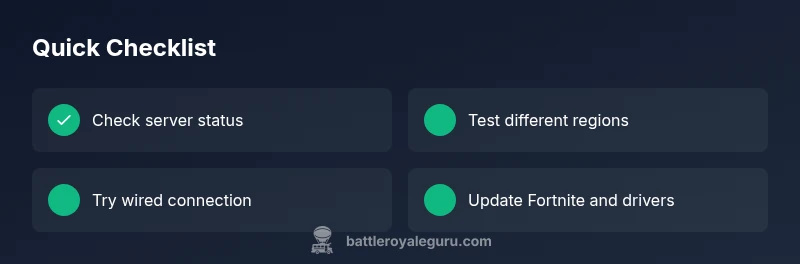
Start with the easiest checks: server status, region, and NAT type. If queues are still slow, try a wired connection, disable crossplay for a quick isolate, and apply updates. Reboot devices and test after each change to see what moves the needle. If you’ve exhausted all options and still encounter persistent issues during busy periods, escalate to support with your logs and network details. The Battle Royale Guru team recommends documenting timings before and after each fix to spot trends across different sessions. For many players, a combination of server status awareness, network tweaks, and sensible in-game settings is enough to restore stable matchmaking in 2026.
Steps
Estimated time: 20-40 minutes
- 1
Check server status and region
Open Fortnite’s official status page or social channels to confirm server health. Note your current region and try another region if the option is available. Record results after each change to track impact.
Tip: Document the time of day and your region for pattern spotting. - 2
Test in solo queue to isolate variables
Queue solo without party members to determine if the issue is party-related. If solo games are normal, the problem likely lies in party coordination or crossplay. Repeat with a small party to compare results.
Tip: Keep tests consistent: same time, same region, and same device. - 3
Verify NAT type and firewall rules
Check your router and device NAT settings; a strict NAT can cause delays and host migrations. Open or forward the required ports for Fortnite and test with cross-checked firewall rules.
Tip: If unsure about ports, consult your router’s manual or ISP support. - 4
Optimize network hardware
Prefer a wired Ethernet connection if possible. If using Wi‑Fi, switch to 5 GHz, minimize interference, and consider a short, high-quality Ethernet cable for console devices.
Tip: A direct cable connection eliminates most Wi‑Fi variability. - 5
Test crossplay and regional settings
Temporarily disable crossplay to determine its impact on matchmaking speed. If fixes are region-dependent, adjust region settings for longer-term improvements.
Tip: Switch back to crossplay after a controlled test to re-evaluate impact. - 6
Keep software up to date
Install any Fortnite updates and ensure drivers (GPU, network) are current. Reboot all devices after updates and retest matchmaking.
Tip: Automate updates where possible to minimize lapses in performance.
Diagnosis: Player experiences long queue times or frequent queue losses with unclear reason
Possible Causes
- highRegional server congestion or outages
- highStrict NAT type or firewall blocking matchmaking traffic
- mediumCrossplay-induced pool balancing causing longer searches
- lowISP routing or DNS issues affecting path to Fortnite servers
Fixes
- easyCheck official server status and try a different region if allowed
- easyTest with wired connection or move closer to router to reduce jitter
- mediumOpen or forward required ports and enable UPnP; disable firewall temporarily to test
- easyTemporarily disable crossplay to test effect on matchmaking
- easyUpdate Fortnite and GPU/network drivers; reboot devices
Questions & Answers
Why is matchmaking slow in Fortnite right now?
Queue times can rise during peak hours or when servers are under heavy load. Check server status and try different regions. If the issue persists, use the diagnostic flow to identify the root cause.
Queue times can rise during peak hours. Check server status and region settings, then run the diagnostic flow to find the cause.
Does turning off crossplay improve match quality?
Disabling crossplay can reduce the pool size and sometimes improve search times for some regions or devices, but it may also shorten your pool and increase wait times in others. Test with and without crossplay to compare results.
Turning off crossplay can help in some cases; test both ways to see which gives faster matches.
How can I fix high ping from my home network?
Run a local network test, switch to a wired connection if possible, and reduce Wi‑Fi interference. Check NAT type and consider updating router firmware or replacing hardware if needed.
High ping? Test wired connections, reduce interference, and check your NAT settings. Update firmware if needed.
What should I do if the server status shows issues?
If the server status indicates issues, you’ll generally need to wait for the service to recover. Meanwhile, try different regions or queue solo to see if the problem is regional or device-specific.
Server issues usually require waiting for recovery; try different regions to see if it helps.
Is changing region a safe fix?
Changing region is safe but can affect latency. Use region tests to determine the best option for your location and avoid frequent changes that complicate troubleshooting.
Region changes are safe but can alter latency; test to pick the best option.
When should I contact support?
If you’ve systematically tested fixes and still face issues during peak times or after updates, contact support with details about your device, region, NAT type, and logs.
If fixes don’t help after testing, contact support with your device details and logs.
Watch Video
Key Points
- Identify root causes with a stepwise diagnostic flow
- Prioritize server status and region checks
- Test fixes one at a time to gauge impact
- Crossplay can be a major factor—test with it enabled/disabled