What to Do to Play Fortnite: A Beginner's Guide
A comprehensive beginner's guide on what to do to play Fortnite—from account setup and platform choice to installing, configuring settings, and jumping into your first match with confidence.


By following this guide, you will know what to do to play Fortnite from start to finish: verify your platform, create or sign in to an Epic Games account, install the game, and configure key settings for smooth performance. You'll also learn troubleshooting steps for common obstacles and how to jump into your first match with confidence.
Platform choice and account setup
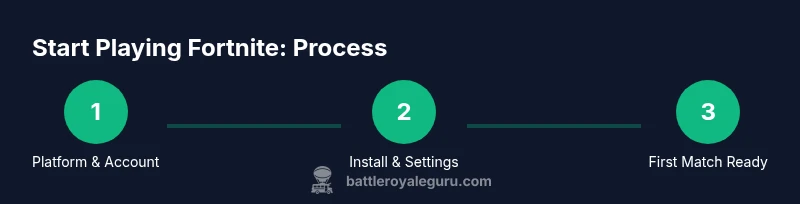
If you’re trying to figure out what to do to play fortnite, the first decision is your platform. Choose between PC, console, or a compatible mobile option. Each path has its own advantages for controls, performance, and access to updates. The Battle Royale Guru team emphasizes starting on a platform you can consistently use, because a steady setup reduces friction during onboarding and matches. According to Battle Royale Guru, players who align their platform with their playstyle tend to experience fewer connection hiccups and smoother learning curves. Once you settle on a platform, your next priority is creating or signing in to an Epic Games account. This account is your gateway to Fortnite’s cross‑platform ecosystem, your progress, skins, and Battle Pass status. Enable two‑factor authentication for security. If you share a device, create a dedicated profile to keep the experience safe for younger players. With platform choice and account security in place, you can move on to installation and basic preferences, which helps you start your first match without unnecessary delays. The overview above points to the concrete steps you’ll follow next, with practical details to keep you moving.
Create or sign in to your Epic Games account
Your Epic Games account is the key to accessing Fortnite, saving progress, and syncing data across devices. If you already have an account, sign in with your credentials and verify your email. If you don’t, take a few minutes to create one using a valid email address and a strong password. During setup, enable two‑factor authentication for extra security. This is especially important if you share a device with others or if you plan to use accounts on multiple platforms. After you’re signed in, you can customize your account profile and privacy settings so you control who can contact you and who can view your in‑game activity. Once the account is established, you’re ready for the next phase: confirming system readiness and proceeding to download the game. Remember, a properly secured account reduces risks and contributes to a smoother early experience.
Check system readiness: platform, hardware, and internet
Before you install Fortnite, assess your platform’s readiness. Ensure your device meets the necessary requirements and has adequate storage space. Check your internet connection for stability, as a reliable network directly affects matchmaking quality and lag. If you’re playing on PC, update your graphics drivers and confirm your operating system is current. Console players should install any pending firmware updates and verify that the system’s age restrictions align with the game’s terms. The goal here is to minimize surprise issues during install and initial play. A stable setup reduces the likelihood of mid‑match disconnects, crashes, or performance dips that would disrupt your first games. This preparation forms the foundation for a smooth onboarding, which is essential when you’re learning what to do to play fortnite.
Install Fortnite on your device
With account setup and readiness checks complete, it’s time to install Fortnite. On PC, download the Epic Games Launcher, sign in, and initiate Fortnite installation from your library. Console players typically navigate to the storefront and select Fortnite to begin installation; mobile users should follow the official app store guidance to download the game. Expect the install to take some time, depending on network speed and device performance. During the install, avoid running other heavy programs to ensure the process completes without interruptions. After installation finishes, launch Fortnite to log in with your Epic Games account and confirm that the game boots correctly on your platform. If you encounter issues, consult the troubleshooting steps later in this guide. This stage is the gateway to practicing and learning what to do to play fortnite efficiently.
Tune your settings for performance and clarity
Tuning settings is a crucial step in learning what to do to play fortnite well. Start with the basics: set your resolution, graphics quality, and frame rate limits to balance visuals with input responsiveness. On PC, prioritize performance presets that maintain stable FPS and reduce input latency. On consoles, use the system’s in‑game options to optimize brightness, color settings, and performance modes if available. In all cases, adjust sensitivity and key bindings to fit your style. A clean, responsive interface helps you focus on gameplay rather than fighting with the controls. Save a baseline preset for starting matches, and gradually tweak options after you’ve built a feel for the game. The goal is a comfortable, consistent experience that supports steady learning and better early outcomes.
Learn the Fortnite UI and basic controls
Understanding the user interface and core controls is essential in any beginner’s journey to playing Fortnite. Familiarize yourself with the main HUD elements: the map, item slots, weapon slots, building materials, and the health/shield indicators. Practice basic movements, sprinting, and crouching, then master rapid editing and placing walls, ramps, and floors. For keyboard and mouse players, customize bindings so the most-used actions are reachable with minimal finger movement. Console players should take advantage of built‑in accessibility features and controller presets. As you experiment, you’ll discover which UI layout and control scheme feels most natural, enabling quicker decision‑making under pressure. The more intuitive your controls, the faster you’ll translate game sense into successful plays.
Choose a game mode and set realistic first‑match expectations
Fortnite offers multiple modes, and your choice shapes your early experience. Beginners often start with low‑stakes modes like Creative for practice, then move to standard Battle Royale in a relaxed lobby. Consider playing with friends to reduce performance anxiety and learn team communication. In your first few matches, focus on basic movement, gathering materials, and making cautious engagements rather than chasing eliminations. Use early rotations to learn how the map evolves and where fights are likely to occur. Setting small, achievable goals—like surviving until the menu shows you where you are in the circle—helps sustain momentum and keeps the learning curve manageable. As you gain experience, you’ll begin to recognize common patterns and improve your decision‑making in real games.
First‑match readiness: mindset, safety, and growth plan
Finally, prepare for your first actual match with a simple plan. Decide your landing spot close to loot but with manageable risk, then collect basic weapons and building materials. Focus on staying alive rather than racking up eliminations in the first few games. Mantaining a calm, patient mindset reduces nerves and helps you observe enemy patterns without panic. After your first few sessions, review performance—note what you did well and where you can improve. Establish a repeatable practice routine that blends aim drills, building exercises, and quick rotation practice in Creative mode. This approach builds consistent skill growth and reduces the intimidation factor of your first real games. By sticking to a steady routine, you’ll see progress, and the question of what to do to play fortnite becomes clearer with every session.
Troubleshooting common start‑up and connectivity issues
If Fortnite won’t launch or keeps disconnecting, start with basic checks. Confirm you are signed in with the correct Epic Games account and that the game files are intact. Verify your internet connection is stable and that your router isn’t blocking the game’s ports. If the issue persists, check for known outages or maintenance notices and apply any available patches or updates. On PC, running the launcher as an administrator can resolve some permission issues; on consoles, perform a soft reset or clear cache if applicable. Always ensure you are not violating age or regional restrictions, as these can prevent access. By following these steps, you can reduce downtime and stay focused on learning what to do to play fortnite effectively.
Next steps: practice routines, coaching, and ongoing updates
Fortnite is continually evolving with new seasons, weapons, and balance changes. To stay ahead, establish a long‑term practice routine that includes warm‑ups, aim drills, and building sequences. Consider watching community guides to learn advanced techniques, but always test new ideas in Creative or in controlled lobby matches before applying them in live play. Regularly review patch notes to understand how changes affect meta and strategy. If you’re serious about improvement, plan a light coaching or peer‑review setup where you can share clips and receive constructive feedback. With consistent practice and an adaptive mindset, your understanding of what to do to play fortnite will grow into a confident, repeatable skill set.
Tools & Materials
- Epic Games account(Needed to sign in and access Fortnite; enable two-factor authentication.)
- Stable internet connection(Reliable Wi‑Fi or wired connection to minimize lag and disconnects.)
- Device platform(PC, PlayStation, Xbox, Nintendo Switch, or mobile device that supports Fortnite.)
- Fortnite installer / Epic Games Launcher(Download from official sources and keep it updated.)
- Controller or keyboard and mouse(Choose the input method you’ll use for building and aiming.)
- Headset(Optional for in‑game voice chat and better spatial awareness.)
Steps
Estimated time: 60-90 minutes
- 1
Choose platform and secure account
Decide on your platform first, then create or sign in to your Epic Games account. Enable two‑factor authentication for security. This foundation prevents future access issues and keeps your progress safe.
Tip: Use a device you can access reliably every day to minimize setup friction. - 2
Verify readiness and update firmware
Check that your hardware and internet can handle Fortnite. Update your console or PC firmware and graphics drivers if they’re out of date. A current system reduces crashes and ensures smooth gameplay.
Tip: Install any pending updates before you start the game. - 3
Download and install Fortnite
Download the Epic Games Launcher, sign in, and install Fortnite from the library. Wait for the download to finish without interrupting other bandwidth‑heavy activities. Launch the game once installed to confirm login works.
Tip: Close background apps to free bandwidth during installation. - 4
Apply performance‑oriented settings
Set graphics to a balanced preset, adjust resolution, and tailor frame rate to your display. Calibrate sensitivity and key bindings so you can react quickly in combat. Save this baseline as your starting point.
Tip: Document your baseline settings so you can revert if needed. - 5
Learn the controls and UI
Familiarize yourself with the HUD, loading screens, and inventory. Practice basic movement, sprinting, jumping, and crouching. Build simple structures in a test area to get comfortable with editing and placement.
Tip: Use Creative mode for safe, focused practice away from real matches. - 6
Choose a beginner mode and practice
Start with a low‑risk mode like Creative or casual Battle Royale to acclimate to the map and loot. Play with friends to improve communication and cooperation. Establish small goals for each session.
Tip: Focus on survival objectives before attempting eliminations. - 7
Plan your first match strategy
Decide a landing area with accessible loot and a reasonable chance of avoiding early fights. Gather basic weapons and materials, then practice rotating to safe zones. Keep a calm mindset and learn from each encounter.
Tip: Keep a simple escape route in mind if you get overwhelmed. - 8
Review and adjust after each session
Record a few clips or notes about what worked and what didn’t. Adjust sensitivity, bindings, or build strategies based on evidence from your games. Small refinements compound into meaningful improvement.
Tip: Track one concrete improvement per session to avoid overload. - 9
Troubleshoot common issues
If the game won’t launch or performances drop, check for account or patch issues, verify files, and ensure ports aren’t blocked. Consult official outage notices and patch notes for guidance. Apply fixes iteratively until the problem resolves.
Tip: If you’re stuck, a clean reinstall can fix stubborn glitches. - 10
Plan a sustainable practice routine
Create a weekly practice plan that blends aim drills, editing speed, and map awareness. Schedule time for review and adjust strategy as patches roll out. With consistency, you’ll convert early wins into long‑term skill gains.
Tip: Balance practice with rest to maintain sharp reflexes and prevent burnout.
Questions & Answers
Is Fortnite free to play, and do I need to pay to start?
Yes, Fortnite is free-to-play. You can access core modes, earn cosmetic items, and participate in events without purchasing the base game. Optional purchases include Battle Passes and cosmetic bundles. Be mindful of regional restrictions and age-appropriate content.
Fortnite is free to play. You can start without paying, and optional purchases exist for cosmetics and Battle Passes.
Which platform is best for beginners?
There isn’t a single best platform; it depends on your comfort with keyboard/mouse versus a controller and your access to hardware. Many newcomers choose a platform they already use to reduce friction. The core skills transfer across platforms, and Fortnite supports crossplay to team up with friends.
There isn’t one best platform; pick what you’re comfortable with, since you can play with friends across platforms.
How do I enable crossplay with friends on other platforms?
Crossplay is generally enabled by default when you log in with your Epic Games account. You can invite friends across platforms through in-game menus and party settings. If you encounter issues, verify account linking and ensure you’re using the same region and friend code sharing settings.
Crossplay is usually on by default. Use the in-game menus to invite friends across platforms and verify your account is linked properly.
What are the basic controls I should learn first?
First, learn movement and sprinting, then practice building and editing. Master switching weapons quickly and building structures to gain high ground. Finally, get comfortable with aiming and shooting in short engagements to improve survival odds.
Learn movement, then building, switching weapons, and quick aiming to stay alive.
What should I do if Fortnite won’t install or launch?
Start with basic checks: confirm your account status, verify game files, and ensure there are no ongoing outages. Restart the launcher or console, and try a clean reinstall if necessary. If problems persist, consult official support channels for patch notes and known issues.
If it won’t install, verify files, check for outages, and try restarting or reinstalling. Seek official support if needed.
How can I improve quickly without overwhelming myself?
Focus on small, repeatable drills in Creative mode: aim practice, quick edits, and map awareness. Review a few game clips, identify one improvement per session, and gradually increase difficulty as you grow more confident.
Do short, focused drills in Creative mode and review clips to identify one improvement per session.
Watch Video
Key Points
- Choose a platform and secure your account before playing.
- Install Fortnite only after confirming system readiness and updates.
- Tune settings for balance between visuals and performance.
- Practice in Creative mode to build foundational skills quickly.