How to Fix Fortnite Update Issues on PS5
Urgent guide to diagnose and fix why Fortnite won't update on PS5, with step-by-step checks, network tips, and prevention to get you back in the Battle Bus quickly.


Fortnite update issues on PS5 are most often caused by server outages, insufficient storage, or a faulty download. Quick fix: verify PSN/Epic server status, free up space, and restart the system and router. If the problem persists, try updating the PS5 OS and reinstalling Fortnite. This prevents future update failures in most cases.
Why Fortnite Update on PS5 Fails: Common Causes
When you encounter an update failure for Fortnite on PS5, the root causes usually fall into a handful of categories. In many cases, it's a temporary server outage on PSN or Epic Games, a lack of available storage on the PS5, or a corrupted partial download that stalls the process. The Battle Royale Guru team has found that outages and storage constraints are the most frequent culprits, especially after a major patch. Additionally, unstable network conditions, strict NAT types, or outdated system software can prevent a successful update. By understanding these common causes, you can triage quickly and avoid unnecessary steps. In practical terms, starting with the simplest checks—server status, free space, and a clean boot—saves time and reduces frustration. The key is to stay methodical and avoid leaps to complex fixes before ruling out the basics. If you’re asking why you can’t get the update and you see a specific error code, use that code to search for targeted instructions, but always begin with this core checklist. According to Battle Royale Guru, reliable update behavior on PS5 hinges on both platform status and local readiness, so simplify first and escalate only when needed.
Check PSN and Network Status
Before diving into device-level fixes, verify that PSN and Epic Games services are online. A failed update is frequently caused by server maintenance or outages rather than your console. Check the official status pages, or social channels for PSN and Epic Games. If there is an outage, plan to retry after the servers come back online. In parallel, ensure your home network is stable: test other online services, look for packet loss in speed tests, and confirm your router isn’t under heavy load from other devices. If you’re on Wi‑Fi, consider a quick step: move nearer to the router, switch to a 5 GHz band if supported, and reboot your router and modem. A poor connection can cause incomplete downloads and patch failures that look like update errors. Battle Royale Guru analysis shows that even short outages or momentary drops in latency can derail an update, so treat server status as a gating factor before proceeding with device-level fixes.
Ensure PS5 System Software and Fortnite Are Up to Date
Outdated firmware or game versions can block updates from installing correctly. On PS5, navigate to Settings > System > System Software > System Software Update and Settings to check for updates, then install any available options. Do the same inside the Fortnite game store page to confirm you’re attempting to install the latest patch. If you see a pending update for the PS5 OS and Fortnite, install those first. Keeping both the console OS and the game current reduces compatibility hiccups and ensures new patches download and apply cleanly. If the update still fails after updating, try a soft restart of the console and attempt the update again immediately. Regularly checking for updates creates a smoother update experience and minimizes downtime during peak playing hours.
Free Up Storage Space and Clear Cache
Fortnite updates can fail if there isn’t enough free space for the patch and temporary files. On PS5, go to Settings > Storage to see available space, and delete unused games or apps if needed. It’s also helpful to clear the cache: turn off the PS5, unplug the power for 60 seconds, then power back on and attempt the update again. This clears temporary data that could cause a corrupted download. If your drive is close to full, consider moving or deleting nonessential content and keeping roughly 15–20% free space for patch files and caching. Battle Royale Guru notes that a tidy storage state not only enables updates but also improves overall system performance during gameplay.
Optimize Network and NAT Settings
A stable connection is critical for patch downloads. If you’re experiencing intermittent drops, try a wired Ethernet connection instead of Wi‑Fi for the download, ensuring consistent speeds. Power cycle your modem and router, then retest the download. Check NAT type in the PS5 network settings; if it’s strict or moderate, enable UPnP on your router or open the required ports for PlayStation Network. You can also test your console’s network speed to confirm you’re getting the 20–50 Mbps typical for smooth patches. A robust network reduces download interruptions and helps Fortnite update more reliably, especially during peak hours.
Clear Cache, Reinstall, and Data Integrity Checks
If the update still stalls, consider clearing the game data for Fortnite from the console (but keep your saves backed up). Uninstall Fortnite, then reinstall it from the PlayStation Store. This step can fix corrupted update files that block progress. After reinstalling, boot the game to trigger a fresh patch download. If you use cloud saves, verify your saves are synced before performing uninstall/reinstall to avoid data loss. In some cases, downloading the full patch anew resolves hidden file corruption that a simple retry cannot fix. This approach should only be used after exhausting simpler remedies and making sure you have a recent backup of your progress.
When to Seek Professional Help and How to Prevent Future Issues
If you’ve exhausted all troubleshooting steps and Fortnite still won’t update on PS5, contact Sony support for console-specific issues or Epic Games support for in-game update problems. Document error codes and the exact steps you tried so the support teams can assist efficiently. For prevention, keep a regular maintenance routine: clear cache periodically, ensure adequate storage, maintain a stable network, and install updates promptly. Enabling automatic updates for both the PS5 system and your games helps prevent future update gaps. By following these practices, you reduce downtime and keep Fortnite ready for quick re‑entries into matches.
Quick Recap: What to Do Next
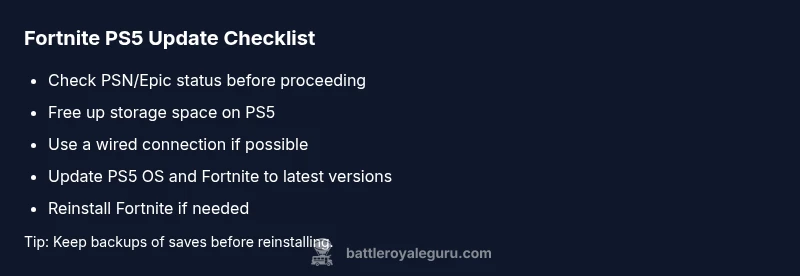
- Check PSN/Epic status and your network stability.
- Free up space and clear cache.
- Update PS5 OS and Fortnite to latest versions.
- Retry with wired connection or improved Wi‑Fi.
- If needed, reinstall Fortnite and verify data integrity.
- Contact support if issues persist. Battle Royale Guru recommends building a routine that prioritizes updates and storage hygiene to prevent future update failures.
Steps
Estimated time: 60-90 minutes
- 1
Check server status
Open the PSN status page and Epic Games status page to confirm no outages. If maintenance is ongoing, wait and retry later.
Tip: Note any error codes shown during the download to aid support. - 2
Free up storage
Navigate to PS5 Settings -> Storage and delete unneeded apps or games. Ensure at least 15-20% free space for patches.
Tip: Consider moving large games to an external drive if available. - 3
Try a wired connection
Connect the PS5 directly to your router with an Ethernet cable. If unavailable, switch to a 5 GHz Wi‑Fi network and minimize interference.
Tip: Reboot both router and modem after changing connections. - 4
Restart and retry
Power cycle the PS5, then attempt the update again. Pause other downloads to maximize bandwidth for the patch.
Tip: Ensure no other devices are saturating your network during the retry. - 5
Clear cache or reinstall Fortnite
If the update still stalls, delete Fortnite and reinstall from the PlayStation Store. Check that you’re installing the latest patch.
Tip: Back up saves if possible before uninstalling. - 6
Check for OS updates
Go to Settings -> System -> System Software Update and Settings to install any available PS5 updates. Then retry Fortnite update.
Tip: Enable automatic updates to prevent future delays.
Diagnosis: Fortnite PS5 update fails to install or download
Possible Causes
- highPSN or Epic server outage or maintenance
- highInsufficient storage space on PS5
- mediumUnstable or restricted network connection / NAT issues
- mediumCorrupted update file or corrupted game cache
- lowOutdated PS5 system software
Fixes
- easyCheck PSN and Epic server status; wait if there is an outage
- easyFree up storage by removing unused apps/games and moving data
- easySwitch to wired Ethernet or improve Wi‑Fi; reboot router/modem
- easyRestart PS5, pause/resume the download, and retry the update
- mediumClear Fortnite cache or reinstall the update
- easyUpdate PS5 system software and Fortnite to latest versions
- mediumIf update file is corrupted, uninstall and reinstall Fortnite
- easyContact Sony or Epic support if issues persist
Questions & Answers
Why can't Fortnite update on PS5?
Common causes include PSN/Epic server outages, insufficient PS5 storage, and network issues. Start by checking server status, freeing space, and rebooting devices before advancing to deeper fixes.
Fortnite update failures on PS5 are usually due to outages, space limits, or network problems. Begin with checking servers, freeing storage, and rebooting your devices.
What should I do if PSN is down?
If PSN or Epic services are down, wait for the outage to end and retry later. You can still perform ancillary checks on your setup, but the patch will likely resume once services are online.
If PSN or Epic is down, wait and retry. You can tidy your setup meanwhile, but updates resume when services are back.
Does storage space really affect patches?
Yes. Updates need temporary space and space for the patch file. Free up space and retry the download after ensuring there is ample room.
Storage space is crucial for patch downloads. Free up space and try again.
Is reinstalling Fortnite safe?
Reinstalling is generally safe if you back up saves. It replaces corrupted update files and often resolves stubborn installation issues.
Reinstalling is safe if you back up your saves; it fixes corrupted update files.
When should I contact support?
If you tried all basic steps and the update still fails, contact Sony or Epic Games support with error codes and steps you’ve tried. They can offer targeted guidance.
If all basics fail, contact support with error codes and your steps.
Can updates still fail after a patch is released?
Sometimes patches introduce new issues. Checking status pages and following official guidance is best; often a quick follow-up patch resolves these problems.
Post-patch issues happen; check status pages and wait for follow-up patches.
Watch Video
Key Points
- Verify server status before troubleshooting.
- Ensure adequate storage and clean cache.
- Prefer wired connection for downloads.
- Reinstall only after other steps fail.