Fortnite Split Screen on PS5: Complete Guide
Learn how to enable Fortnite split screen on PS5 with two controllers. This comprehensive guide covers prerequisites, step-by-step setup, troubleshooting, and tips for smoother local co-op play.


This guide shows you how to enable Fortnite split screen on PS5 with two controllers and two PSN profiles. You’ll need a PS5, two working DualSense controllers, and a stable internet connection. We’ll cover prerequisites, signing in, starting a Duo or Squad match, and common issues—so you can play Fortnite locally with a friend.
What to expect with Fortnite split screen on PS5
Fortnite split screen on PS5 lets two players share a single console, each using their own controller to play Fortnite in the same living room. In practice, you’ll be able to drop into Duo or Squad games with a friend on the couch. Availability can vary by patch and season, so always verify in the lobby that the option is present before you start. According to Battle Royale Guru, this feature is designed for local co-op and is a great way for new players to practice with a friend. If you want to disable split screen, you can sign out the second controller’s account from the lobby. This section helps you understand what to expect and what you’ll need before getting started.
As you read, keep in mind that split screen is about shared progress and joint play. You don’t gain separate progression on the second account in a way that conflicts with the primary account; both players share a single victory and rewards pool in most modes. This approach supports casual play and family-friendly sessions, while still letting you compete against others online. The Battle Royale Guru team emphasizes checking the current season’s notes for any changes to join screens, mode availability, and performance settings to ensure a smooth experience.
Prerequisites and requirements
Before attempting Fortnite split screen on PS5, confirm you meet the essential prerequisites. You’ll need a PlayStation 5 with the latest system software installed, two functioning DualSense controllers, and two active PSN accounts on the console. Fortnite must also be installed and updated to the latest patch. A stable internet connection is required for both players, and you should review in-game privacy or parental controls if needed to allow split-screen access. In addition, some modes or regional restrictions may temporarily disable split-screen; always confirm in the lobby. For reliability, consider a wired controller connection and a wired internet backhaul where possible. Battle Royale Guru’s analysis highlights staying current with patch notes to avoid surprises at launch time, so you don’t waste time on setup that won’t work in your session.
Step 1: Prepare your accounts
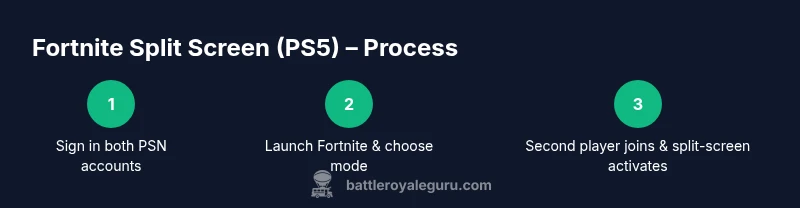
Power on your PS5 and sign in with the primary PSN account that will host the session. Make sure the Epic Games/Fortnite account is linked for this profile so progress and inventories carry over. Then, on the same console, sign in the second PSN account using the second DualSense controller. Both accounts should be ready and online, and you should verify that each user can access Fortnite from the main menu. This preparation ensures a smooth transition when you attempt to join split-screen later in the lobby.
From the Battle Royale Guru perspective, ensuring two valid accounts are ready reduces the risk of a mid-session sign-in prompt breaking the flow. If you encounter an error, sign out and back in, then retry the connection. Having both accounts ready also helps with in-game voice chat and any crossplay settings you might want to adjust before jumping into a match.
Step 2: Sign in the second controller
With both PSN accounts ready, press the PS button on the second controller to switch to the second user. In most PS5 setups, you’ll see a prompt to select a user or sign in; choose the second account. Make sure the second controller is linked to that user and remains connected via Bluetooth or USB-C. Verifying the second controller’s pairing ahead of time prevents delays at the lobby and reduces frustration when the match begins. The goal is to have both players visible in the system menu before launching Fortnite.
Step 3: Launch Fortnite and go to the lobby
Start Fortnite with the primary account and wait for the main lobby to load. From there, you should see an opportunity for the second user to join the session. If the second controller is properly signed in, you’ll receive a prompt on the second controller to join the lobby. It’s important that the second player accepts and is ready to join in the same lobby area. If you don’t see a prompt, close Fortnite and reopen it, ensuring both profiles stay active on the console.
Step 4: Select a Duo or Squad mode
In the Fortnite lobby, choose either Duos or Squads as your game mode. Split-screen is typically supported in these party modes, but not in all difficulties or Creative modes depending on patch notes. Ensure both players are visible in the lobby and that the split-screen option is active on the second controller’s screen. If you see a “Split Screen” toggle, enable it and confirm the second player is set to join the game. This step aligns both players’ sessions and prepares the screen split for play.
Step 5: Join and enable the split screen
The second player should now join the game automatically, and the screen will split to accommodate two perspectives. You may see a gray or white bar and a shared interface design. Confirm that both players’ HUD elements are visible on their respective halves, with shared inventories or teammate indicators shown as appropriate. If the second player doesn’t join, try re-entering the lobby, restarting Fortnite, or re-signing into the second account. The goal is to have a clean two-player split-screen setup that reflects both players’ in-game states.
Step 6: Start the match and coordinate
Ready up and start the match once both players are connected and the split screen is active. Communicate loadouts, movement, and objectives to maximize your cooperative advantage. The split screen provides a shared field of view, so coordinate strategies and cross-check your teammate’s position frequently. If you plan to adapt to dynamic weather or map changes, assign roles so both players can contribute effectively from the start.
Step 7: Manage settings for comfort and performance
Once in-game, you may want to adjust video settings, field of view, and HUD scale to optimize for two players sharing a screen. In some cases, reducing resolution or enabling performance mode can help maintain smooth play. If either player experiences lag, consider reducing background applications on the PS5 and closing any streaming apps. The Battle Royale Guru team recommends testing these settings before consuming console resources in long sessions to avoid surprises mid-game.
Step 8: End the session properly
When you’re finished, return to the lobby and sign out the second user or exit Fortnite completely. Avoid leaving the second account signed in if you’re done playing for the day, as this can affect future sign-ins. If you plan to resume later, make sure both profiles are still ready for next time. A clean exit helps prevent data sync issues and ensures a smoother resumption next time.
Step 9: Troubleshooting join issues
If the second player can’t join, verify that both accounts are online and that Fortnites’ online services are accessible. Check for any in-game prompts that may require you to re-authenticate or re-link Epic accounts. Reboot the PS5 and retry, ensuring both controllers remain connected. If problems persist, consult the official Fortnite Help Center for platform-specific guidance and known issues. Battle Royale Guru notes that many join problems stem from account sign-in hiccups or network instability.
Step 10: Alternative approaches if split screen isn’t available
Some players may encounter seasons or regions where split screen is temporarily unavailable. In this case, consider alternatives such as sharing one screen with online-assisted coaching, or taking turns playing modes that don’t require split-screen. While not ideal, these approaches let you keep practicing together until the feature returns. The key is to stay informed about patch notes and regional availability.
Step 11: Safety and parental controls considerations
If children are playing, review PS5 parental controls to ensure both accounts can access online play and Fortnite split-screen features. Disable restrictions that might block online play or account linking. Parenting and safety guides recommend keeping login credentials secure and preventing accidental purchases. Staying aware of these safety measures helps protect both players and keeps the gaming session enjoyable.
Step 12: Recap and next steps
You now know how to enable Fortnite split screen on PS5, join a Duo or Squad, and coordinate with a friend on a single console. Remember to keep both systems updated and verify mode support for your current patch. For ongoing guidance, check the latest patch notes and community discussions to stay ahead of any changes. The Battle Royale Guru team emphasizes practice and good communication as keys to an enjoyable local co-op experience.
Quick reference: common troubleshooting checklist
- Are both PSN accounts signed in on the PS5?
- Is the second controller properly connected and signed in?
- Is the lobby set to Duo or Squad and is split-screen enabled?
- Are you on the latest Fortnite patch and PS5 system software?
- If issues persist, restart Fortnite, restart the PS5, and re-authenticate the accounts.
Tools & Materials
- PlayStation 5 console(System software up to date)
- Two DualSense controllers(Charged or connected via USB-C)
- Two PSN accounts on the console(One host, one guest)
- Fortnite installed and updated(Latest patch)
- Stable internet connection(Both players online)
- Headsets (optional)(Voice chat for both players)
Steps
Estimated time: 15-25 minutes
- 1
Sign in both PSN accounts
Power on your PS5 and sign in with the two PSN accounts that will participate in split-screen. The primary account will host the session. Ensure both accounts can access Fortnite from the main menu.
Tip: Have credentials ready to avoid login delays. - 2
Update system and game patches
Check that the PS5 system software and Fortnite patch are current. Updates fix known split-screen issues and improve compatibility with modes available in the current season.
Tip: Update during a break to avoid mid-session interruptions. - 3
Launch Fortnite on the host account
Open Fortnite on the primary account and wait for the lobby to load. This establishes the host context for split-screen. Do not start a game yet.
Tip: If the main lobby stalls, close and reopen Fortnite. - 4
Sign in the second controller
On the PS5 home screen, switch to the second user and sign in. Confirm the second controller is paired and active in the system.
Tip: If the second controller doesn’t appear, re-pair via USB-C. - 5
Join the second player to the lobby
In Fortnite, navigate to the lobby and ensure the second account is listed. The second player should see a join prompt on their screen.
Tip: If no prompt appears, restart Fortnite and try again. - 6
Select Duo or Squad mode
From the lobby, pick Duos or Squads as your game mode. Split-screen is usually supported in these modes; confirm in the lobby UI.
Tip: Avoid modes that explicitly disable split-screen in this patch. - 7
Enable split-screen and join the game
The second player’s screen should join and the view will split. Confirm both players’ HUDs are visible.
Tip: If the second player’s screen remains blank, rejoin the lobby. - 8
Load into the match together
Ready up on both controllers and start the match. Communicate loadouts and coordinate movements from the early moments.
Tip: Establish roles to maximize your co-op efficiency. - 9
Adjust settings for comfort
In-game Settings > Video/HUD adjust brightness, scale, and FOV to suit double-screen play. Consider performance mode if available.
Tip: Test changes in a practice lobby first. - 10
End session gracefully
After playing, return to the lobby and sign out the second account or exit Fortnite responsibly to avoid lingering prompts.
Tip: Sign out to prevent cross-session sign-in issues later. - 11
Troubleshoot persistent issues
If issues persist, reboot the PS5, re-authenticate both accounts, and verify the latest supported patch lists for split-screen constraints.
Tip: Check official support pages for known issues. - 12
Plan for future sessions
Keep players aligned with patch notes for upcoming seasons, as split-screen support can change per update.
Tip: Set a reminder to review patch notes before playing.
Questions & Answers
Can I use split screen on PS5 Fortnite in all game modes?
Split screen is typically supported in Duo or Squad modes and may not be available in Creative or Arena depending on the patch. Always check the lobby prompts before starting a game.
Split screen works in selected modes like Duos and Squads, but not in every mode.
Can the two players use different accounts during split-screen?
Yes. Each player uses their own PSN and Epic accounts. Progress is shared in the session, and inventory items are tied to the primary account for most modes.
Two accounts can play together on split-screen, sharing progress in that session.
What if the second player can’t join the split-screen session?
Ensure both accounts are signed in, Fortnite is updated, and you are in a mode that supports split-screen. If problems persist, restart Fortnite or the PS5 and retry the join process.
If the second player won’t join, recheck sign-ins and patches, then retry.
Is split-screen available in Creative mode?
Split-screen availability in Creative varies by patch. If you don’t see the option in Creative, switch to a supported mode like Duos or Squads to play locally.
Creative mode may not support split-screen in all patches.
What should I do if the screen doesn’t split properly?
Check that both controllers are signed in, the lobby mode supports split-screen, and the latest patch is installed. If needed, rejoin the lobby or restart Fortnite.
If it won’t split, confirm sign-ins and patch status, then retry.
Watch Video
Key Points
- Two PSN accounts are required on the PS5 for local split-screen.
- Split-screen is used in Duo or Squad modes when available.
- Update PS5 system software and Fortnite to latest patch.
- If issues occur, check sign-in, lobby prompts, and network stability.