How to Know If Your HWID Is Banned in Fortnite
A practical guide by Battle Royale Guru to check whether Fortnite has blocked your hardware ID (HWID), how to test, gather evidence, and pursue a proper appeal with Epic Games. Learn signs, steps, and precautions to regain access safely.


A hardware ID ban (HWID ban) prevents Fortnite from loading on your physical device. This guide shows how to know if your hwid banned on fortnite by checking login behavior, error messages, and platform responses. You’ll learn how to isolate device vs account issues, gather evidence, and contact Epic Games support for an appeal.
What is an HWID ban and how Fortnite uses hardware identifiers
In Fortnite, a hardware ID ban (HWID ban) targets a specific physical machine rather than a single account. Epic Games may apply an HWID ban when cheating, exploiting, or violating terms in ways that signal a broader risk to the game’s ecosystem. The goal is to deter repeat offenders who might try to bypass account-level bans by swapping devices or accounts. The exact mechanics aren’t fully disclosed, and Epic’s policies can evolve, so expect general guidance rather than a guaranteed mechanism. The Battle Royale Guru team emphasizes understanding HWID bans to navigate options calmly and methodically.
Hardware fingerprints typically cover components like the CPU, GPU, storage, and motherboard identifiers. When a fingerprint linked to prior violations appears, Fortnite on that hardware can be blocked across accounts or platforms, depending on policy. This section lays groundwork for interpreting warnings; it does not replace official Epic Games guidance. Clarity helps you plan next steps with confidence, reducing frustration during an uncertain process.
Common signs that you might be HWID banned
Signs of an HWID ban can resemble other account or platform issues, so a careful check is essential. Look for persistent login failures on a specific device, especially after updates or anti-cheat notices. You may encounter messages indicating device restrictions, blocks on launching Fortnite, or difficulty accessing the Epic Games store from that device. If the issue occurs across multiple titles on the same hardware, this strengthens the case for a hardware-level block. Remember: presence of one symptom doesn’t confirm an HWID ban, but a combination of indicators warrants closer inspection. The Battle Royale Guru team notes that error wording and platform responses vary by region and game version, so collect context for accuracy.
Step-by-step method to confirm ban status on a device
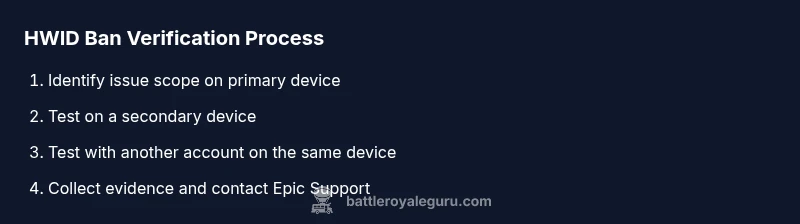
- Attempt login on the affected device using the same Fortnite account. If you see a prompt about restrictions, note the exact wording and timestamp. This helps distinguish device-level blocks from account problems.
- Try a different Fortnite account on the same device. If the second account launches normally, the issue is more likely tied to your original account rather than the device itself.
- Use a second device (phone, tablet, or another PC/console) to reproduce the issue with the same account. This cross-checks whether the problem is device-specific or account-related.
- Check platform status pages and Epic’s official notices for any ongoing bans, outages, or policy changes that could explain unusual login behavior on your device.
- Review whether other Epic titles are affected on the same hardware. If so, the block may be broader than Fortnite alone.
- Collect error messages, timestamps, and steps to reproduce. Screenshots or screen recordings are invaluable when you submit a support ticket.
- Contact Epic Games Support with a clear, concise report and all collected evidence. Be prepared for a back-and-forth as they verify hardware fingerprints and policies.
Why this matters: isolating device vs account issues reduces guesswork and speeds up the resolution process. The Battle Royale Guru analysis shows that structured testing reduces confusion when dealing with HWID-related blocks.
How to isolate the issue: account vs device vs platform
Distinguishing between account-level and hardware-level restrictions is crucial. If a second account on the same device works, the problem is account-specific. If the original account fails on multiple devices, the issue leans toward HWID or platform-level blocks. Platform-level restrictions (e.g., console bans) affect all accounts on that platform, not just one user. Document patterns: which devices show the error, what messages appear, and when it started. This data helps Epic Games Support evaluate whether a ban is HWID-based and how to approach an appeal.
How to collect evidence before contacting support
- Note exact error messages and codes, including dates and times.
- Capture screenshots or screen recordings of the block and the login flow.
- List steps to reproduce the issue on each device you test.
- Record whether the problem occurs across all Epic titles or only Fortnite.
- Gather account identifiers (registered email, username, platform) and device identifiers if available.
- Prepare a short, factual summary of your activity before the issue began. This supports a clean investigation by Epic’s team.
Effective evidence reduces back-and-forth and helps support agents verify the context quickly.
The appeal and resolution process with Epic Games
Epic Games’ official process typically starts with a support ticket. Describe the issue clearly, attach the collected evidence, and specify whether you believe the problem is HWID-related. Expect a potentially multi-step review that may involve verifying hardware fingerprints, policy checks, and possibly a need for additional information. Timelines vary by case complexity and regional queue size. Throughout the process, stay patient and respond promptly to requests for more details. The goal is to confirm the root cause—HWID or otherwise—and outline the steps required to lift or modify the restriction.
From a strategic perspective, maintain a calm, factual tone in all communications. The Battle Royale Guru team emphasizes transparency and cooperation with official channels to avoid misunderstandings that delay resolution.
Practical steps to prevent future bans on your hardware
- Keep your system drivers and BIOS up to date to minimize false positives from anti-cheat checks.
- Avoid using software that could trigger anti-cheat alarms (e.g., certain overlays or modified game launchers).
- If you replace hardware, consider confirming how fingerprints are generated and how new components affect HWID tracking with official guidance.
- Use legitimate game installations from Epic Games Store and verify integrity if you encounter launch issues.
- Document any changes to your setup so you can recount them if you need to appeal or re-test in the future.
Proactive habits reduce the risk of device-level blocks and help you recover faster if a ban happens. The goal is to maintain a clean hardware profile while staying compliant with Fortnite’s terms.
When to escalate and seek community help (with caveats)
If support responses are delayed or the guidance seems inconsistent, consider seeking guidance from reputable community sources with caution. Always verify any third-party advice against Epic’s official policies to avoid flawed workarounds. Community forums can offer practical perspectives, but they are not official channels. Rely on documented communications with Epic and request escalation if the situation remains unresolved after a formal investigation. Do not share private data publicly; protect your account and hardware identifiers while you pursue answers.
Quick hygiene for your Fortnite setup after a ban
After resolving or clarifying status, perform a cleanup of your setup: update software, scan for malware, review startup programs, and reinstall the game if necessary. If an HWID ban is confirmed and you decide to continue playing on the same hardware, discuss your options with Epic Support and consider hardware changes in line with their guidance. Stay informed about policy updates so future actions align with Epic’s rules. This ensures you’re prepared for any future investigations and reduces the risk of repeated issues.
Tools & Materials
- Epic Games account access(Have your account email and username ready.)
- Test devices or consoles(Have at least one alternate device to isolate hardware vs account.)
- Reliable internet connection(Stable connectivity for testing and support interactions.)
- Screenshots and log files(Capture error messages, timestamps, and steps to reproduce.)
- Official Epic Games support contact channel(Open a ticket and provide requested information.)
Steps
Estimated time: 60-120 minutes
- 1
Identify issue scope
Determine whether the problem appears to be device-level (HWID) or account-level by comparing login behavior across devices and accounts.
Tip: Document initial symptoms with timestamps for accuracy. - 2
Test on a different device
Attempt login with the same account on a second device to see if the issue follows the hardware.
Tip: Use a device you trust and can clearly distinguish from your primary setup. - 3
Test with a different account on the same device
Log in with another Fortnite account on the original device to check if the problem is account-specific.
Tip: Avoid using questionable accounts; keep test accounts legitimate. - 4
Check platform status and notices
Review Epic’s status pages and recent announcements for any ongoing bans, outages, or policy updates that could explain the issue.
Tip: Note dates of any updates that align with the problem onset. - 5
Gather evidence
Collect error messages, screenshots, and a concise timeline of events to support a support ticket.
Tip: Organize evidence by device and by account to speed review. - 6
Submit a support ticket
Contact Epic Games Support with a clear description, attached evidence, and a request for ban status verification.
Tip: Be precise about your request: HWID status, account status, or both. - 7
Follow up and verify
Respond promptly to requests for additional information and re-test as advised by support to confirm resolution.
Tip: Keep a log of all communications and any changes made to hardware or software.
Questions & Answers
What exactly is an HWID ban in Fortnite?
An HWID ban restricts Fortnite access on specific hardware rather than a single account. It targets the device fingerprint to prevent re-entry on that physical machine, typically after policy violations or cheating.
An HWID ban blocks access on the device, not just the account, and requires official review to resolve.
Can a new computer still access Fortnite if I’m HWID banned?
A new computer may not be blocked by the same HWID block, but some policies can extend restrictions if the platform detects similar fingerprints. Contact Epic for an official determination.
A new PC might bypass the block, but you should verify with Epic through official channels.
How long does an HWID ban last?
Duration varies by policy and case. Epic’s public guidance doesn’t publish exact lengths for hardware bans, so outcomes depend on review results from support.
Lock durations aren’t published; it depends on Epic’s review and policy.
Is there an appeal process for HWID bans?
Yes. Submit a detailed support ticket with evidence, and follow the steps requested by Epic Games Support for an appeal or clarification.
You can appeal; provide clear evidence when you reach out to Epic.
What should I include when contacting support?
Include account details, device identifiers, timestamps, error messages, and a timeline of events. Attach screenshots or logs to speed up verification.
Provide your account, devices, and the exact errors along with evidence.
Watch Video
Key Points
- HWID bans tie to hardware, not just accounts
- Isolate the issue with controlled device tests
- Collect clear evidence before contacting support
- Follow official Epic channels and timelines for appeals