How to Fix Fortnite Lag: A Practical Troubleshooting Guide
Learn how to fix Fortnite lag with a practical, step-by-step approach covering cables, settings, drivers, and server factors—across PC, console, and mobile.


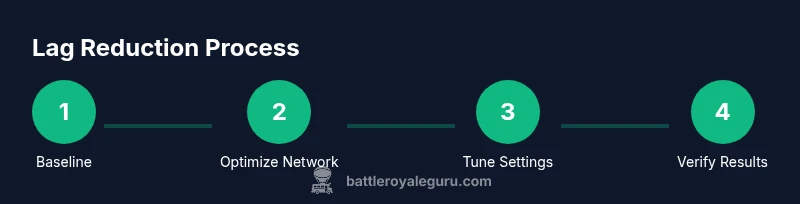
To fix Fortnite lag, start with a platform-agnostic troubleshooting routine: verify your baseline connection, optimize both network and device settings, and test changes under real-game conditions. This guide covers PC, console, and mobile paths, plus server considerations and safety notes. Following these steps will help you reduce latency, smooth gameplay, and improve responsiveness in Fortnite.
Understanding Fortnite lag and why it happens
Fortnite lag is more than occasional stutter or a momentary rubber-banding glitch. It’s a mismatch between your device performance, the quality of your internet connection, and the game servers’ responsiveness. When latency spikes, you’ll notice delayed input, delayed hits registering, or objects snapping into place. While server-side congestion can contribute during peak hours, most lag is rooted in local conditions—network health, hardware bottlenecks, and software settings. According to Battle Royale Guru, many players misattribute lag to the game alone; a structured diagnostic approach often reveals the real culprits and practical fixes. This guide will teach you how to fix fortnite lag by tackling the problem piece by piece, from wiring and bandwidth to in-game tweaks and timing checks.
Quick baseline checks you can do now
Start with a fast, low-friction baseline. Measure your current latency in a browser or your console/PC’s network diagnostics, then compare to memory of typical performance during non-gaming activities. Make sure other devices aren’t saturating your bandwidth. Check your NAT type; a strict NAT can rob you of responsiveness even if your latency reads low. If you’re on Wi‑Fi, try a short, direct test with a wired connection. By isolating variables, you’ll quickly see whether the lag is hardware, network, or server-related. Throughout this process, keep your goals simple: reduce jitter, lower ping, and stabilize frame timing. The Battle Royale Guru team often highlights that small, repeated improvements add up to noticeable performance gains.
Optimize your network for gaming
A wired Ethernet connection generally yields the lowest latency and most stable packet delivery for Fortnite lag. If wired isn’t possible, position your router to minimize interference and switch to a 5 GHz channel with fewer nearby networks. Enable Quality of Service (QoS) rules for gaming traffic if your router supports them, and ensure UPnP is enabled to help the game open required ports. Close bandwidth-heavy applications (streaming, backups, cloud sync) during gameplay. If you suspect your ISP is throttling gaming traffic, consider testing during off-peak hours or using a reputable VPN cautiously—though VPNs often add latency, they may help in some specific congestion scenarios.
Tune in-game and system settings
In Fortnite, set the game to prioritize performance over visuals: reduce render scale, shadows, and effects; disable motion blur; and ensure V-Sync is off to avoid input lag. On PC, update graphics drivers, disable unnecessary startup items, and check for background processes that consume CPU or memory. On consoles, ensure system software is up to date and close other apps before playing. Mobile users should close background apps and confirm the device isn’t overheating. These tweaks reduce frame-time variability and improve consistency, addressing the core components of how to fix fortnite lag.
Hardware, drivers, and background processes
Keep your hardware in good health: run a clean malware scan, ensure sufficient RAM for Fortnite, and verify your GPU and NIC drivers are current. Disable aggressive power-saving modes that throttle CPU/GPU or network adapters. In some cases, background apps can spike CPU usage or consume disk I/O, causing stutters. If you’re negotiating lag on older hardware, consider lowering game resolution or upgrading components where feasible. Regular maintenance—disk cleanup, defragmentation (or TRIM for SSDs), and driver hygiene—helps long-term stability.
Server-side factors and game updates
Sometimes the root cause lies beyond your device: Fortnite game updates, server maintenance, or regional congestion can introduce lag. Always check Epic Games’ server-status feeds and official social channels during suspected outages. If latency spikes occur repeatedly at the same times, it may indicate regional congestion or a temporary routing issue. In such cases, patience plus a few of the local optimizations above usually yield relief once the server load normalizes. The Battle Royale Guru analysis shows that combining local optimizations with awareness of server conditions produces the best outcomes.
Authoritative sources
- Official Federal Communications Commission (FCC) information on latency and broadband quality: https://www.fcc.gov
- Microsoft Support on network and latency optimization: https://learn.microsoft.com
- Epic Games Help Center on server status and game updates: https://www.epicgames.com/help/en-US
Tools & Materials
- Stable internet connection (fiber or high-quality broadband)(Wired Ethernet is preferred for lowest latency.)
- Ethernet cable (Cat6 or better)(Use shielded cable if available to reduce interference.)
- PC/console with Fortnite installed and updated(Keep the game and system software at latest patches.)
- Router with wired port and QoS (optional)(Enable gaming QoS and ensure NAT type is not strict.)
- Background monitoring tool (optional)(Useful for tracking latency and jitter over time.)
- Block testing window (20-30 minutes)(Schedule dedicated play sessions to evaluate changes.)
Steps
Estimated time: 45-75 minutes
- 1
Run baseline latency and packet checks
Begin with a quick baseline: measure latency (ping) to your Fortnite region as well as general network latency. Note jitter and any packet loss. This establishes a control to compare against after changes.
Tip: Record results in a simple log so you can see trends over multiple tests. - 2
Switch to a wired connection
If you’re on Wi-Fi, connect your device directly to the router with a wired Ethernet cable. A stable wired link dramatically reduces average latency and jitter compared with wireless connections.
Tip: If you must stay wireless, move closer to the router and reduce interference from other devices. - 3
Reboot and refresh network equipment
Power cycle your modem and router ( unplug for 60 seconds, then plug back in). This clears stale network states and can fix transient latency issues.
Tip: Wait 2-3 minutes after reboot for the network to stabilize. - 4
Update drivers and firmware
Update your network adapter and GPU drivers, and ensure your router firmware is current. Outdated software is a common lag source.
Tip: Reboot after updates to apply changes. - 5
Close background apps and optimize in-game settings
Close bandwidth-heavy apps and adjust Fortnite settings for performance: lower render scale, disable shadows, and turn off V-Sync if needed for responsiveness.
Tip: Test changes one at a time to see which has the biggest impact. - 6
Test with controlled play sessions
Enter a few short matches in a quiet window, observing latency, input responsiveness, and hit registration. Compare to your baseline.
Tip: Avoid mixing too many variable changes at once. - 7
Consider server and route factors
If problems persist, check Epic Games server status and regional routing indicators. Server-side issues may require waiting or alternate routing.
Tip: Document times of persistent issues to share with support if needed. - 8
Evaluate results and plan follow-up
Assess whether latency and stability improved. If not, escalate with ISP checks or hardware upgrades. Re-test after any further tweaks.
Tip: Set a recurring baseline test to catch regressions early.
Questions & Answers
What causes Fortnite lag most often?
Most lag stems from local network health, bandwidth saturation, or hardware bottlenecks rather than game server issues alone. Checking baseline latency, testing one change at a time, and ensuring updated drivers typically resolves most problems.
Most lag comes from your network or hardware, not just the game servers. Start with baseline tests and one change at a time.
Does lag differ by platform (PC, console, mobile)?
Yes. Each platform has unique bottlenecks, so fixes may differ slightly. PCs may benefit from driver updates and background process management, while consoles may rely more on system updates and network routing.
Lag can vary by platform due to hardware and network differences.
Will a VPN help Fortnite lag?
VPNs can help in some rare congestion scenarios but usually add extra latency. Use cautiously and test to see if your routing improves or worsens latency.
A VPN usually adds latency and isn’t a universal fix.
How long should changes take to affect performance?
Some fixes take effect immediately, others may take several minutes of testing. Wait for a few games to assess impact before concluding.
Give changes a few minutes to show effect during testing.
Should I contact my ISP for lag issues?
If you consistently experience high latency across multiple devices and tests, contact your ISP to check for outages or line issues. They can run diagnostics from their end.
If problems persist, contacting your ISP can help identify upstream issues.
Where can I check server status for Fortnite?
Epic Games maintains server-status pages and social channels. Check those during suspected outages or large regional events.
Epic’s server status pages will confirm outages or maintenance.
Watch Video
Key Points
- Take action quickly to reduce lag and improve playability
- Prioritize a wired connection and driver updates for best results
- Test changes one at a time to isolate effective fixes
- Server status can influence lag; test during different times of day