How to Get Rid of Lag in Fortnite: Practical Guide
Discover proven steps to reduce Fortnite lag with network tweaks, in-game settings, and hardware checks. This practical, 2026 guide helps you play smoothly by addressing connectivity, device performance, and safe troubleshooting.


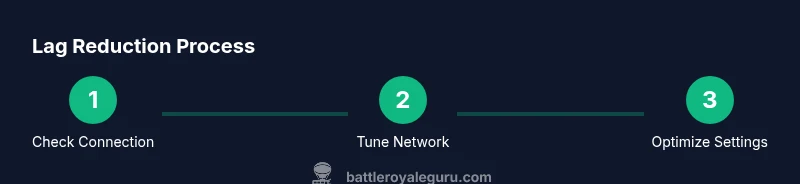
To get rid of lag in Fortnite, start with a stable wired connection and updated drivers, then adjust in-game settings. This steps-based guide covers practical network tweaks, device optimizations, and safe troubleshooting you can apply today to improve latency and maintain smooth gameplay in 2026. Additionally, reduce background activity, cap the frame rate, and consider a DNS tweak if you suspect routing issues. This quick guide gives you a clear path from basics to advanced settings.
Why Fortnite lag happens
Lag in Fortnite is rarely caused by a single factor. Most players experience a blend of network latency, device performance, and software conflicts. According to Battle Royale Guru, the majority of lag comes from three broad sources: your connection (ping, jitter, packet loss), your device (CPU/GPU bottlenecks, RAM availability), and in-game overhead (render settings, background processes, and background downloads). Understanding where the delay originates helps you choose the right fixes rather than just turning down graphics. Server-side issues during peak times can also spike latency, especially if you share a region with crowded matches or if Epic Games is conducting maintenance. With lag awareness, you can adopt a prioritized plan: first stabilize the connection, then optimize the device, and finally fine-tune Fortnite’s own settings. What you feel in-game – rubber-banding, stuttering, and delayed hit registration – often maps to these root causes. Baseline checks (ping tests, latency measurements, and frame-time monitoring) reveal which tier needs attention first. Regular maintenance, including driver and firmware updates, reduces the chance of sudden lag spikes. The Battle Royale Guru team emphasizes consistency in your setup as the most reliable way to sustain improvements over time.
As you diagnose, keep a simple baseline: measure latency with a ping test to a Fortnite server, observe frame-time stability in practice matches, and note any moments when lag spikes coincide with downloads or updates on other devices. This helps you build an action plan you can repeat whenever you encounter lag again.
Quick wins you can apply now
- Use a wired Ethernet connection instead of Wi‑Fi; even a basic Ethernet setup dramatically reduces jitter and packet loss compared with wireless.
- Close unnecessary background apps and downloads before gaming; these consume bandwidth and CPU cycles that Fortnite relies on during matches.
- Cap your FPS to what your monitor can display; uncapped frames can push GPU temps and cause stuttering on mid-range hardware.
- Lower in-game settings temporarily to relieve GPU/CPU pressure, then gradually reintroduce features while monitoring performance.
- Turn off overlays (Discord, recording software) during games; overlays add input latency and draw extra GPU power.
- Check for device updates (GPU drivers, chipset drivers) and apply them; fresh drivers often fix latency and stability issues.
- Test a different DNS provider if you notice routing delays; reputable public DNS options can shorten lookup times for some regions.
- Schedule gaming during off-peak hours when server load and regional traffic are lower, if possible. These quick wins often yield the biggest early gains.
Optimizing your network for Fortnite
Your network quality shapes latency more than most players realize. Start by ensuring a wired path from your router to your console or PC. If you must use Wi‑Fi, place the router higher on a central stand, minimize interference from walls and other electronics, and switch to the 5 GHz band where supported. NAT type matters: open or moderate NAT improves connectivity, while strict NAT can restrict peer connections and increase lag. Enable Quality of Service (QoS) on your router to prioritize gaming traffic, and consider using a dedicated gaming mode if your router supports it. DNS choices can influence how quickly your devices resolve Fortnite servers; test a couple of reputable options and revert if you notice slower performance. Remember to reboot your modem and router after major changes. Keeping other devices off while gaming preserves bandwidth for Fortnite, reducing the chance of congestion-induced lag during key moments.
Tuning your PC/console for smoother gameplay
On PC, ensure your system runs with minimal background load: disable unnecessary startup programs, set a high-performance power plan, and enable Windows Game Mode to limit background activity. Update graphics drivers and the network adapter to the latest versions, and consider a clean boot to test baseline performance without third-party software interference. If you use a laptop, ensure it’s plugged in to avoid aggressive power-saving throttling. On consoles, switch to a Performance mode if available, enable Auto Low Latency Mode, and ensure the system isn’t running any background services that could affect frame-time stability. Regular hardware checks (cooling, temps, and dust removal) help prevent thermal throttling that leads to frame drops during long sessions. Keeping your firmware up to date on routers and extenders also supports stable connections.
In-game settings that matter most
Some settings have a disproportionate impact on latency and responsiveness. Start with Render Distance and Shadows: keep Shadows off to save GPU cycles, and set Render Scale to 100 for consistent display quality without extra processing. Anti-aliasing and Post Processing can be reduced or disabled to lower GPU load; lowering Textures and Effects can also help on budget systems. Disable Motion Blur and V-Sync to minimize input lag and improve responsiveness. Set a stable FPS target that matches your monitor’s refresh rate, and consider enabling a small FPS cap if you notice CPU/GPU spikes. Turn off Dynamic Resolution unless you need it for stability. These adjustments collectively smooth gameplay without compromising essential visibility or aim quality. Always test changes in a practice match before committing to them in a tournament or ranked session.
Hardware upgrades that pay off
If latency persists despite optimizing software and network, it may be time to evaluate hardware improvements. A fast SSD reduces load times and texture streaming pauses; more RAM helps when your system runs multiple background tasks; and a capable GPU/CPU pair reduces frame-time jitter during intense moments. For laptops, ensure cooling is adequate and consider upgrading to a model with a higher clock speed and better thermals. Desktop upgrades can be tailored: you might start with the GPU, then add RAM, and finally a faster storage drive for smoother texture streaming. Before investing, use in-game benchmarks or third-party tools to pinpoint bottlenecks, and aim for balanced, incremental upgrades rather than chasing peak specs. Remember, even the best hardware won’t fix a poor network, so pair any upgrade with solid network optimizations.
A practical approach is to upgrade in steps and re-test Fortnite’s latency after each change. This lets you map improvements to specific components and avoid overspending on unnecessary parts.
Troubleshooting and safety reminders during lag spikes
During peak hours or when Epic Games runs maintenance, lag can spike despite optimal settings. In these cases, rely on official server-status updates and community reports to gauge scope. If you notice persistent lag, perform a quick reset of your router, and re-run a ping test to Fortnite servers to confirm the route you take remains stable. Avoid risky tweaks like overclocking unless you have experience and proper cooling, as improper adjustments can damage hardware or void warranties. Use safe performance tweaks first and keep a log of changes and results so you can revert if needed. If problems persist after following the steps, consider reaching out to your ISP for a line test or exploring alternative routing options with caution.
What to do during peak hours and server issues
During peak times, server-side strain can contribute to higher latency. Plan matches during off-peak hours when possible, and use the in-game matchmaking region preference to steer toward servers with lower congestion if supported. Keep an eye on official Fortnite social channels for maintenance notices. If you still encounter lag during peak hours, ensure your local network is clean (no other devices consuming bandwidth) and test stability with a wired connection. Finally, stay patient—server-side lag typically resolves as traffic normalizes or maintenance completes.
Tools & Materials
- Wired internet connection(Prefer Ethernet over Wi-Fi; ensure router supports reliable throughput)
- High-quality Ethernet cable (Cat6 or better)(At least 1.5 meters for flexibility)
- Fortnite installed on PC/console(Keep updated with the latest build)
- Up-to-date drivers (GPU and network)(Install latest from manufacturer websites)
- DNS optimization guide (optional)(Test alternatives like public DNS if experiencing delays)
- Performance-monitoring tool(Tools to track CPU/GPU temps and frame times)
- Appropriate power plan settings(Set to High Performance on PC; ensure console power mode is optimized)
Steps
Estimated time: 30-45 minutes
- 1
Check your connection
Verify that you are on a wired connection when possible. If you must use Wi‑Fi, move closer to the router and reduce interference from other devices. Run a quick ping test to Fortnite servers to establish a baseline latency.
Tip: Use a wired test to confirm improvements before you try other fixes. - 2
Close background apps
Quit or suspend background programs that consume bandwidth or CPU resources (cloud sync, streaming, downloads). This frees up system resources for Fortnite and reduces input lag.
Tip: Check your task manager (Windows) or Activity Monitor (macOS) to identify culprits. - 3
Update drivers
Install the latest GPU and network drivers. Updated drivers fix performance issues and improve stability in many games, including Fortnite.
Tip: Restart after installation to ensure new drivers are fully active. - 4
Adjust in-game settings
Lower graphics-heavy options and disable post-processing effects to reduce GPU load and input lag. Keep render scale around 100 and FPS cap aligned with your monitor.
Tip: Test changes in a practice match to confirm improvements. - 5
Tweak network routing
If latency remains high, try a different DNS provider or enable QoS on your router to prioritize gaming packets. Reboot modem/router after changes.
Tip: Document which DNS you tested and results to compare later. - 6
Test performance with practice rounds
Play several matches to observe frame times and latency stability. Note any spikes and correlate with other activity on your network.
Tip: Aim for smooth frame times with minimal spikes across multiple games. - 7
Consider hardware checks or upgrades
If lag persists on a device, assess CPU/GPU temperatures and RAM usage. If bottlenecks exist, consider incremental upgrades aligned with your budget.
Tip: Upgrade in small steps and re-test to gauge impact.
Questions & Answers
What causes Fortnite lag?
Lag is typically a mix of network latency, device performance, and in-game overhead. Server issues can also contribute during busy periods. Identifying the dominant factor helps you target fixes effectively.
Lag usually comes from network, hardware, or in-game settings. Identify the main cause to fix it efficiently.
Will upgrading hardware help with lag?
Upgrading hardware can reduce frame-time jitter and improve stability, especially on older systems. Pair hardware upgrades with network optimizations for best results.
Yes, but couple it with network tweaks for the biggest payoff.
Should I use a VPN to reduce lag?
VPNs can both help or hurt latency depending on routing. If you suspect poor routing, test a reputable VPN carefully and compare results. Do not rely on VPNs as a universal fix.
A VPN might help some routes, but often it adds ping time. Test before committing.
How can I test my ping to Fortnite servers?
Use a standard ping test to a Fortnite server or a nearby gateway, then compare results across times of day. Track jitter and packet loss to assess stability.
Ping tests show if latency is variable and where spikes occur.
Does changing DNS improve latency?
DNS can affect how quickly you reach game servers. Try a few reputable public DNS providers and measure response times to see if latency improves.
Sometimes a different DNS can shave off some milliseconds.
Is it safe to overclock my PC to fix lag?
Overclocking carries risk if not done carefully. It can raise temperatures and stability issues. If you’re not experienced, skip it and focus on safer optimizations.
Overclocking can cause damage if misconfigured; seek guidance or avoid it.
Watch Video
Key Points
- Prioritize stable connectivity before tweaking hardware.
- Many lag issues come from background activity and DNS routing.
- In-game settings can dramatically impact latency with small tweaks.
- Test changes in practice matches to verify impact before finalizing.
- Hardware upgrades should be considered after software/network optimizations.